
VM Depot is a catalog of pre-configured operating systems, applications and development stacks that enables you to deploy them in Windows Azure in just some minutes. You can find a lot of VMs ready to use where you can run an specific OS, an specific platform or software, or your own images to share with other.
Catalog is managed by the Community, you can join it to find useful VMs to deploy in your Azure environment, or you can distribute your own VMs with others. Microsoft Open Technologies does not screen images provided by the community members for security, compatibility or performance, so you should conduct your own evaluation before using these images. Published VMs are supported by the community.
You can use the command line to deploy a VM but I like more to use Azure Management Portal:
Go to Virtual Machines section and click on IMAGES sub-menu
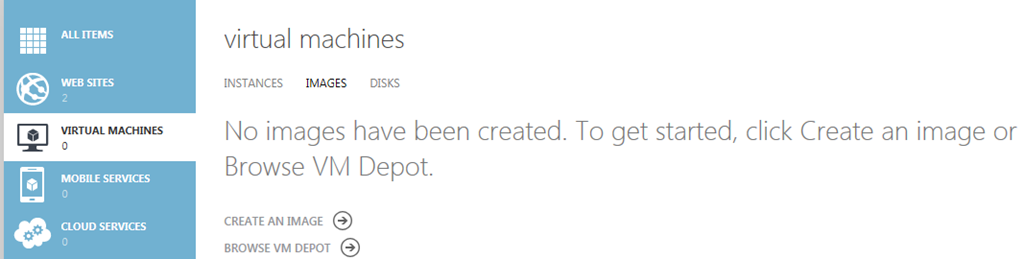
Click on BROWSE VM DEPOT

On Choose an Image section you can navigate in the VM Depot catalog to find the image you need. As you can see, right now exist a lot of images.
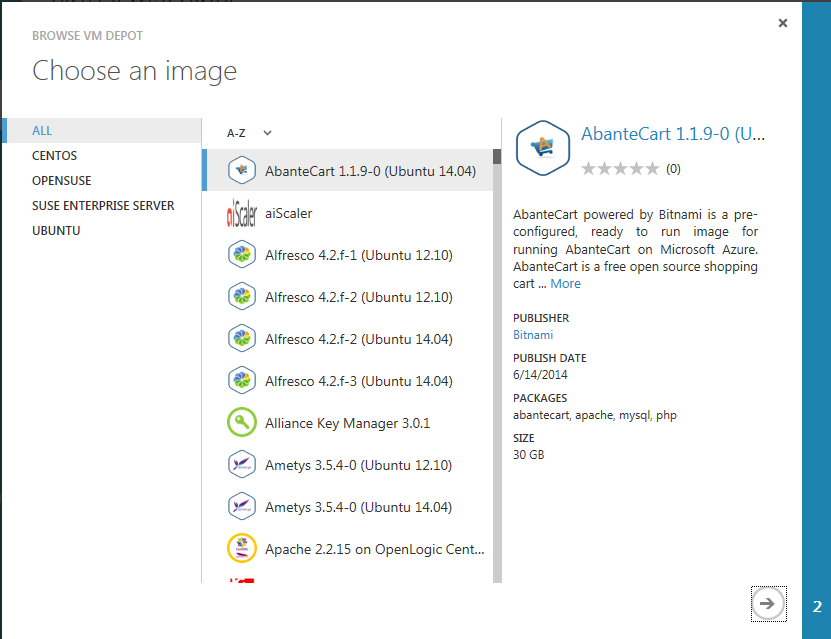
For this example, I will use the MifosX Platform image.

Find Mifos X image in Ubuntu section, select it and click the arrow to move to the next step.
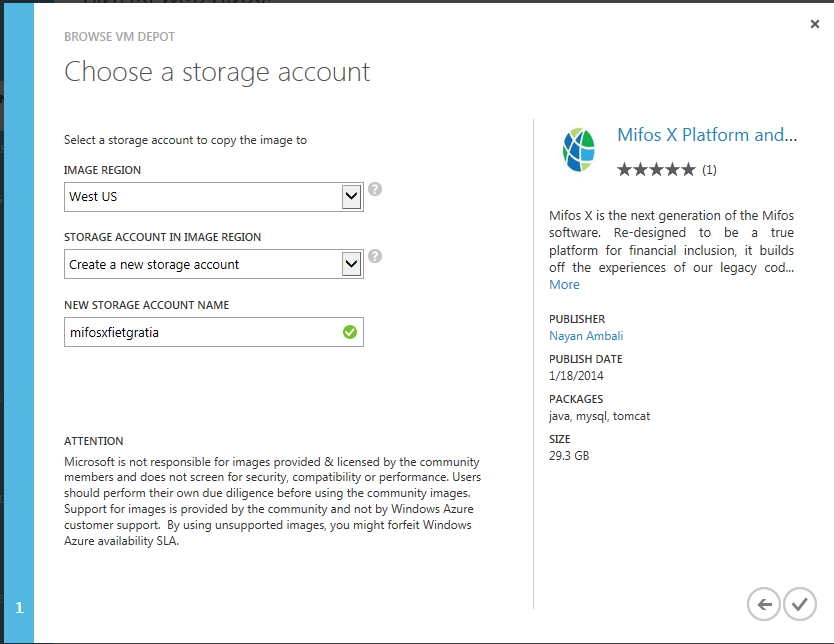
Select your region, type a name for the storage account and click OK icon.
It takes a little while to generate the image, your progress is shown in the management portal. You can leave this page and continue with other tasks, the notification in the toolbar at the bottom of all portal screens will tell you when creation is complete (the animation stops and the notification bar will appear). You can click on the notification icon to see a summary of the job and then on the Details icon to see full progress information.

Once complete you should go back to the Virtual Machine section, Images tab. On this screen you will see your image is present with a status of “Pending registration“, as shown below.

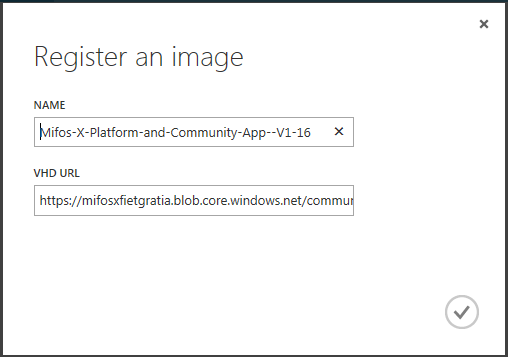
You now need to register this image so that you can create virtual machines from it. Ensure your image is selected (if you have more than one) and click “Register“. You will be asked to provide a name and a VHD URL. Both will be auto filled for you. You shouldn’t change the URL (unless you know what you are doing) but feel free to change the name. Then click the tick to complete the registration which will take a few moments.

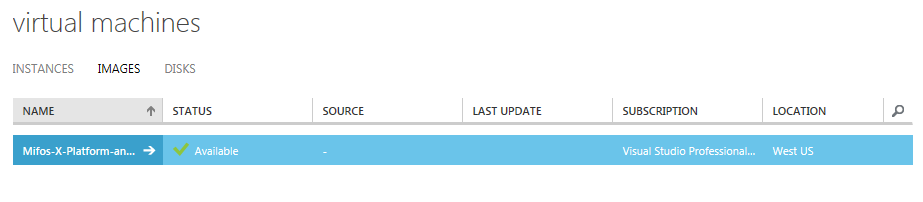
Now you can create VMs from the image you have just get from VM Depot.
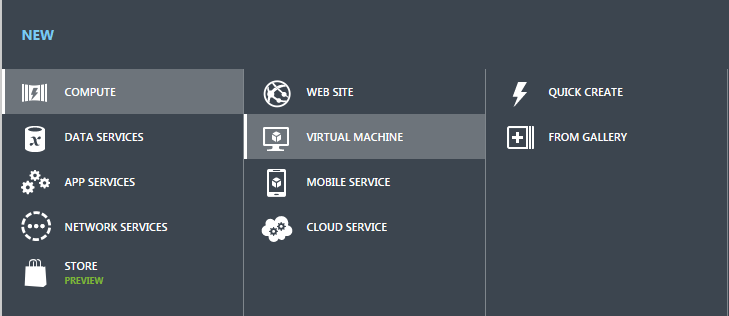
To do that, you have to follow the same process you follow to create a VM using one of the templates provided by Azure by default. Click on NEW, COMPUTE, VIRTUAL MACHINE, FROM GALLERY.
In the gallery you will find your new image under the “My Images” tab. Ensure it is selected, as shown in the screenshot below, and click the arrow to continue.
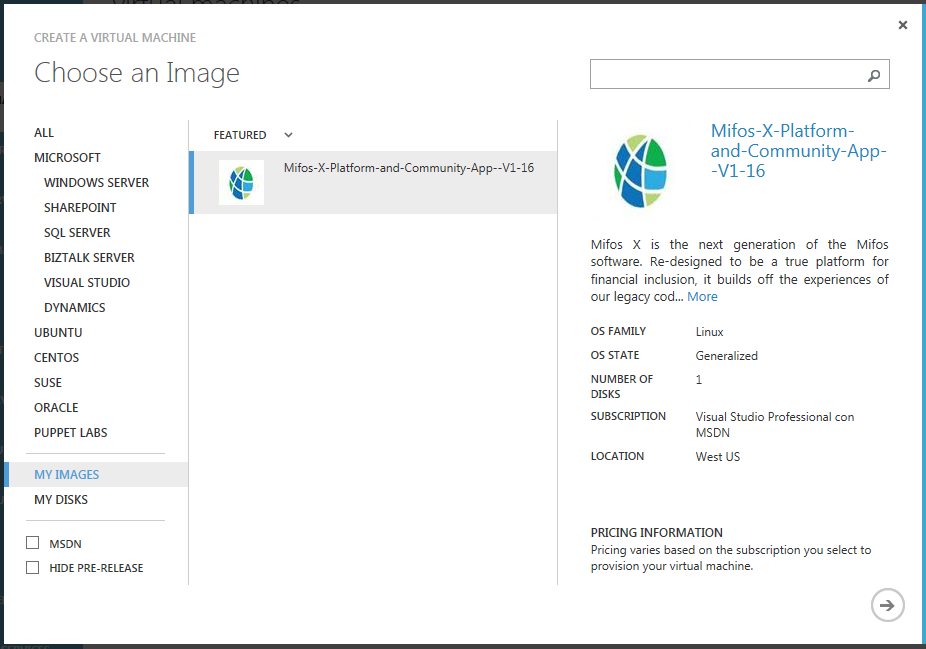
From there, the steps are the same ones you execute to create a VM (provide a name for the server, a size, a user name and password, configure the endpoints, etc.).
Depending on the image specifications you could need to execute some additional steps in your new server to get the application or platform running. This is the case of MifosX image, you need to execute some configurations to get your site running and ready to use, we will see it in the next post on this blog.
In any case, on VM Depot site you can see the specifications for each image published http://vmdepot.msopentech.com
 Angel Perez Palacios