
I was searching for a time a good tool that help to manage a NGO day-by-day work. Not just the financial area but the human resources and relationship with sponsors. I have found several ones and everyone has cons and pros, some of them have to be run locally (in your server or in your laptop) and other ones are in the Cloud, some of them are free and other ones not…
One of the platforms that I like more is Mifos X. It has the majority of the tools you need to manage an NGO organization and provide a very good UI (something difficult to find…). It is free, so you can download it and install in your server, or you can implement it in the Cloud using the AWS or Azure images they provide you. And, like an Open Source platform, you can customize it and develop your modules.
I have installed it on my Azure environment and I would like to share with you the steps I have followed. Mifos X team provides a pre-configured image so it is very simple to create your own Mifos X site.
Deploy Mifos X image
The first step is to deploy Mifos X image from VM Depot catalog to your Azure environment. If you don’t know how to do it, you can follow the steps described on my last post “Azure and VM Depot: Pre-configured VMs ready to use”.
Create a Mifos X server
Now that you have the image available in your environment, you can build a server using this image.
Click on “NEW” action button, and choice COMPUTE –> VIRTUAL MACHINE –> FROM GALLERY

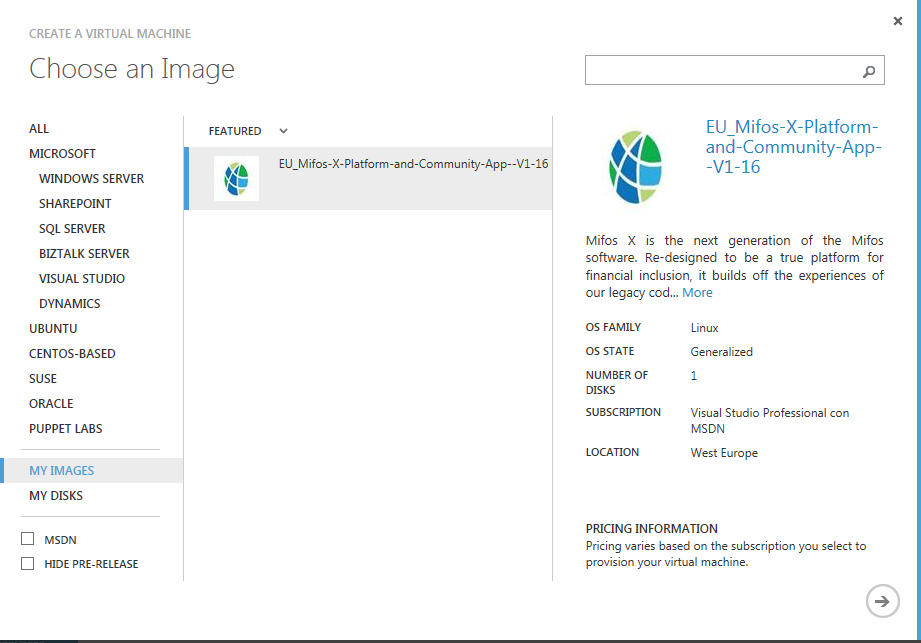
In the gallery you will find your new image under the “My Images” tab. Ensure it is selected, as shown in the screenshot below, and click the arrow to continue:
In the resulting dialog page, give your virtual machine a name, and you can provide a root user and password or upload an SSH key. Select the size of image you want and click the arrow to proceed:

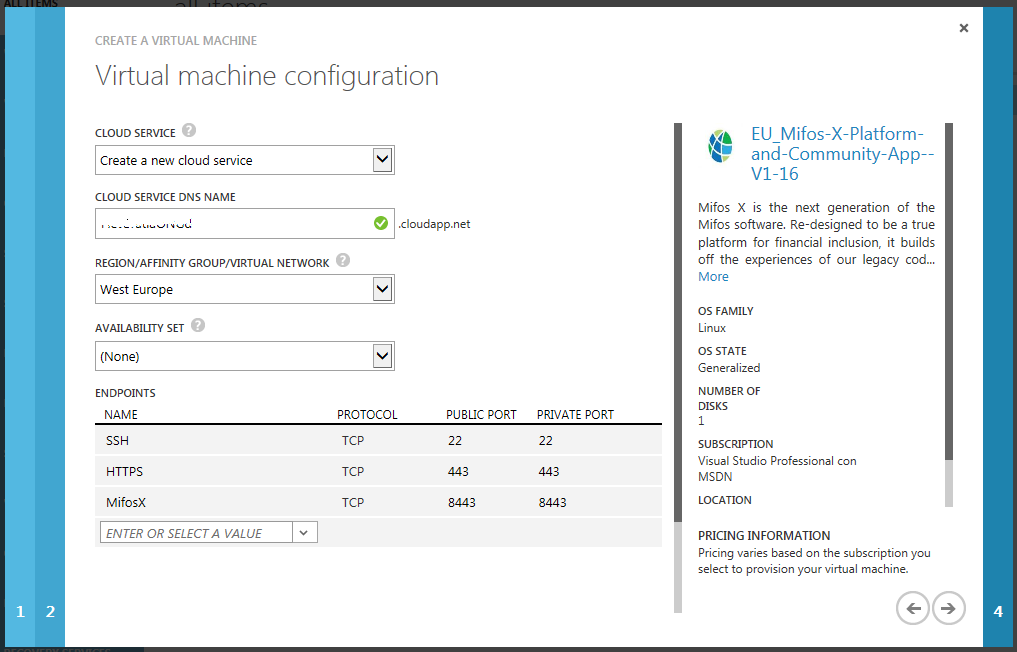
In the next section you have to create a new Cloud Service for your server. Provide a DNS name for the Cloud Service, Region depends on the MifosX image you are used to create this server (the one you have deployed from VM Depot), if you used the West Europe one like me this will be the region that appears. It is important when you deploy the image that you ensure you are selecting the one in your nearly region.
As endpoints, additionally to port 22 for SSH communication, you need to open HTTPS 443 one and create a custom one that you can name MifosX for TCP port 8443 (the one used by MifosX site).
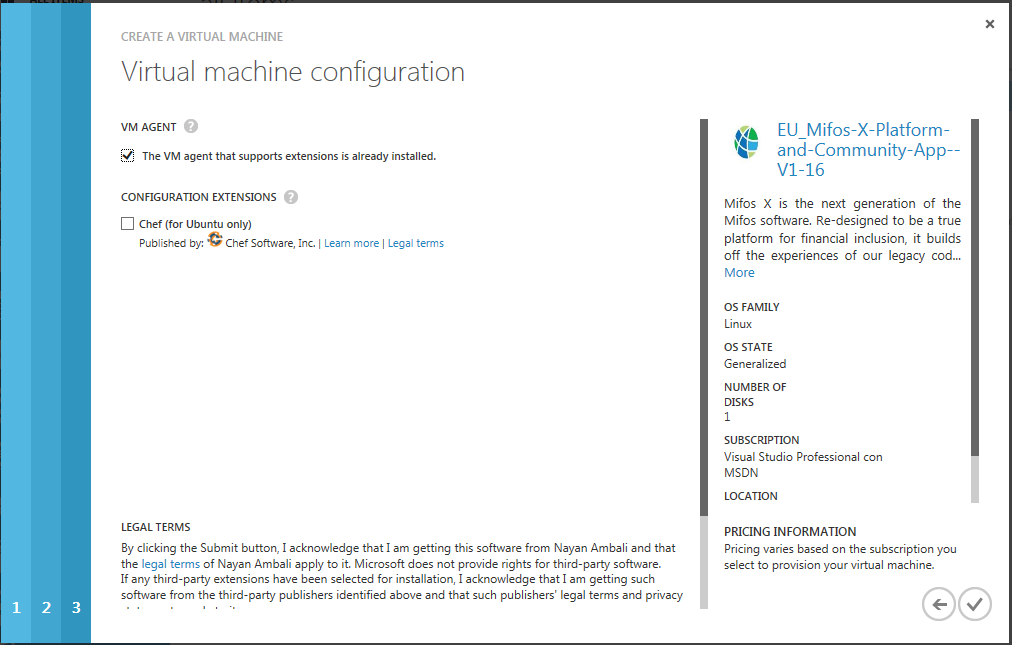
In the next section leave the default values and click OK to create the server:
Provisioning process will start and advise you when it is completed:

At the end of the process you will have two new components: a virtual machine and a Cloud service. You can access to your MifosX site using the following URL:
*Where myMifosxsite.cloudapp.net is the URL of your server
And the default User Name and Password are:
mifos
password
If you follow the instructions on MifosX site, you should use this other URL:
But for any reason, if you use this last URL when you type the User Name and Password, you will receive an error message advising the credentials are not correct. Removing the last part of the URL (the one after “?” symbol) issue is fixed and you can access to the site.
Evidently, the first step you have to do is to change the password of mifosx user.
Congratulations!!! You have a powerful suite to manage your NGO.

Enjoy it!!
 Angel Perez Palacios