
Create a Hadoop cluster is very easy with Azure, it takes just some minutes to get a cluster ready to work or play.
Search the Hadoop elephant icon in the left pane and click on it:
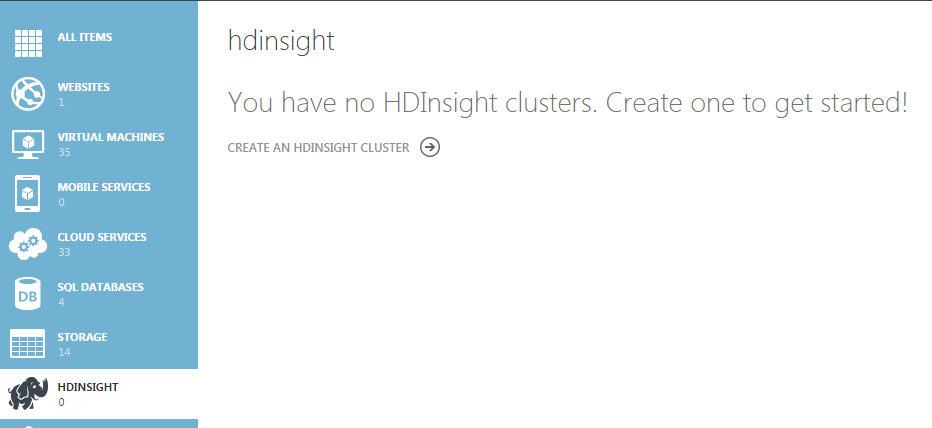
Click on Create an HDInsight Cluster arrow to start the wizard.
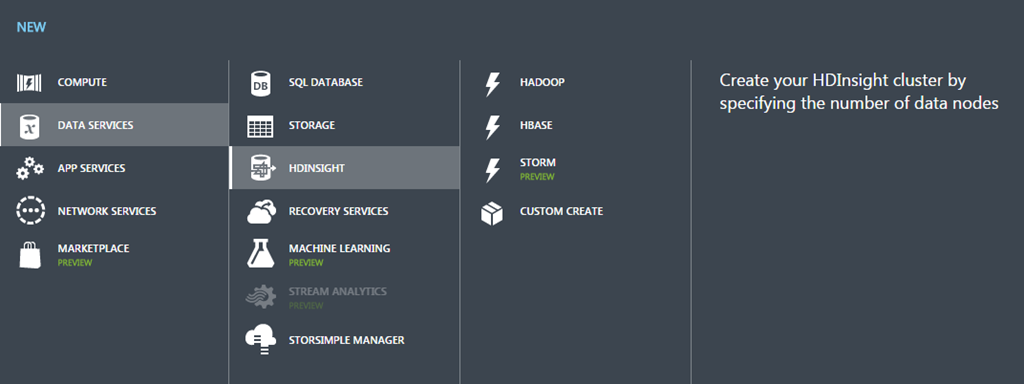
You can use one of the quick ways to create a Hadoop, HBase or Storm cluster, or you can click on Custom Create link to do it step by step:
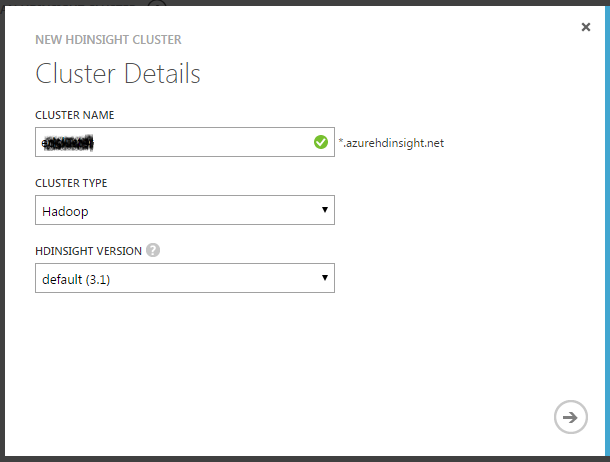
Type a name for your cluster, choice the cluster type you want to create (you can choice between Hadoop, HBase or Storm) and select the version you prefer (this is the version of HDInsight not the Hadoop or HBase version, each HDInsight version will implement different versions of the tools used on that cluster).

Type the number of data nodes you want to implement, the maximum numbers of nodes depends on your subscription. Choice your region or virtual network, and the subnet where you want to run the cluster.
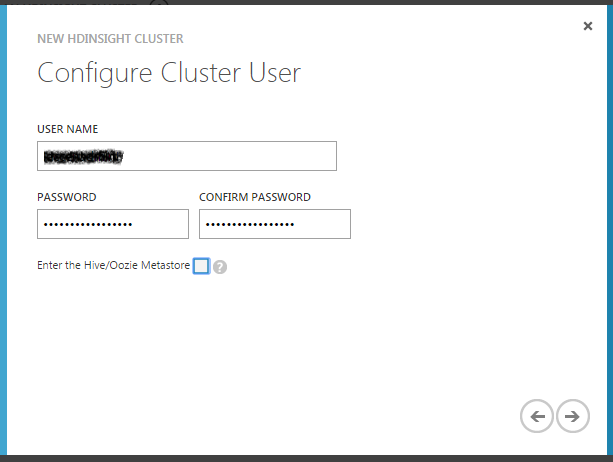
Create an account to manage the cluster, you can enter the Hive or Oozie Metastore if you want, in this case I will not do it at this time.
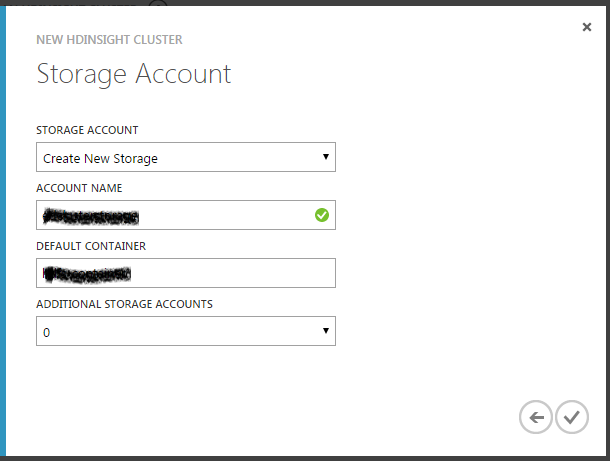
Now you can choice an existing Storage Account or you can create a new one, like we will use an hdfs file system, I prefer to create a new storage account that just will be used for my clusters. On Account Name type the name of the new storage account, and the name of the container to create. You can add additional storage accounts if you want.
Click on OK button and the build process will start.
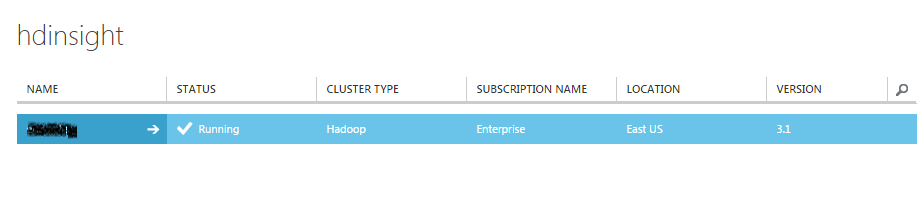
At the end you could see two new components in your console, an HDInsight cluster and a Storage Account with a container:
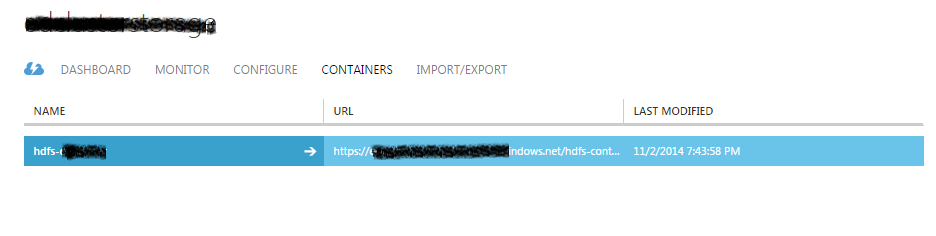
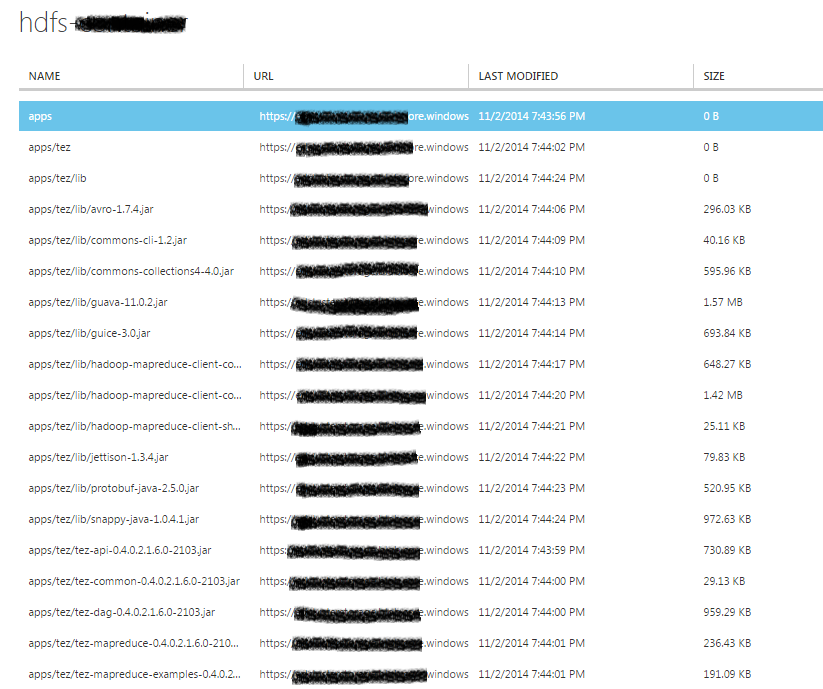
If you click on the container name to open it, you can see several files and folders that are created by default in the cluster:
Your cluster is ready!!
 Angel Perez Palacios