
First at all, we have to say that due to security reasons, remote access to your HDInsight cluster is disable and, as we will see, you can enable it but just for some days.
Go to your cluster and click on Configuration menu. At the bottom of the page you should see a button named Enable Remote:
On the new window provide a name for you the remote user (this user is different from the admin user created during the cluster creation process), provide a password and an expiration date (maximum is 7 days):

After the expiration date, user will be disable and you need to create a new one in case you need to access to the cluster.
Click OK to start the creation process, when it is completed, you can see several new buttons at the bottom of the Configuration page to access to the server:

Click on Connect button. An .rdp file will be downloaded and you can use it to access via Remote Desktop to the server. Enter the new user and password that you have created to access to the cluster server.
On the desktop you can see several icons related to Hadoop, click on Hadoop Command Line to open the command window:
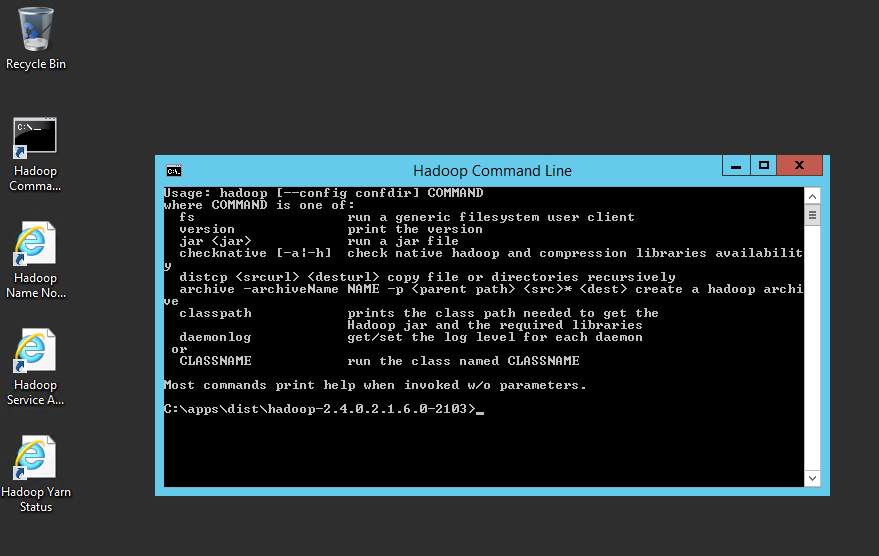
We can use some UNIX commands to navigate in our cluster estructure, for example, try to use the following commands:
hadoop fs –ls /

hadoop fs –ls /example
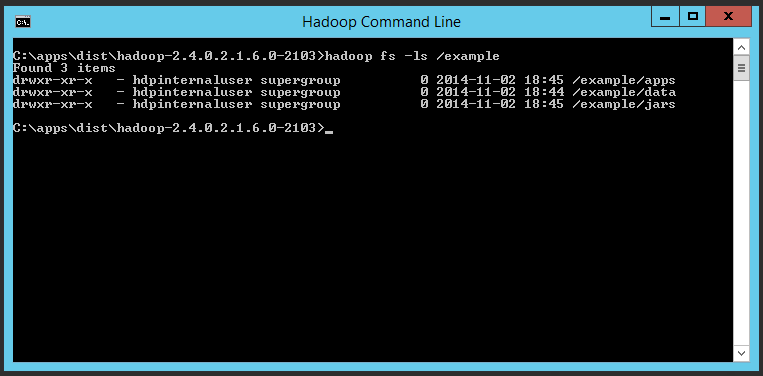
hadoop fs –ls /example/jars
Java job is included in this folder, Java can be used to create map/reduce jobs that works on the cluster data. In this case, like any other Java program, the examples included on this folder contain classes and methods that will execute map/reduce process in different ways (we will see how to use it in the next steps).
hadoop fs –ls /example/data
You can see a folder named gutenberg. As you know Gutenberg is an initiatvie to create electronic copies of all books without copyright (all clasical literature, for example). If you access to gutenberg folder you can see that we have 3 examples of books on .txt format.
hadoop fs –ls /example/data/gutenberg
We can say that our big data will be stored in this format or in a similar one when we upload it to a cluster, big data used to work with data on files.
We can copy one of these files to anohter location using UNIX commands:
hadoop –fs copyToLocal /example/data/gutenberg/davinci.txt c:\davinci.txt
Now we have a local copy of davinci.txt file in our cluster server, the original location of the file (in data/gutenberg) is located in the HDFS system, this is the file system that is shared with all nodes running on the cluster. It is totally different from the server local system.
If you open the file you can see that it is a unestructured file:
notepad c:\davinci.txt
We will use the wordcount class included in the example jar file to execute a map/reduce job that count the times that each word is used in the davinci.txt file.
hadoop jar hadoop-mapreduce-examples.jar wordcount /example/data/gutenberg/davinci.txt /example/results
It will execute a map/reduce process over the data:
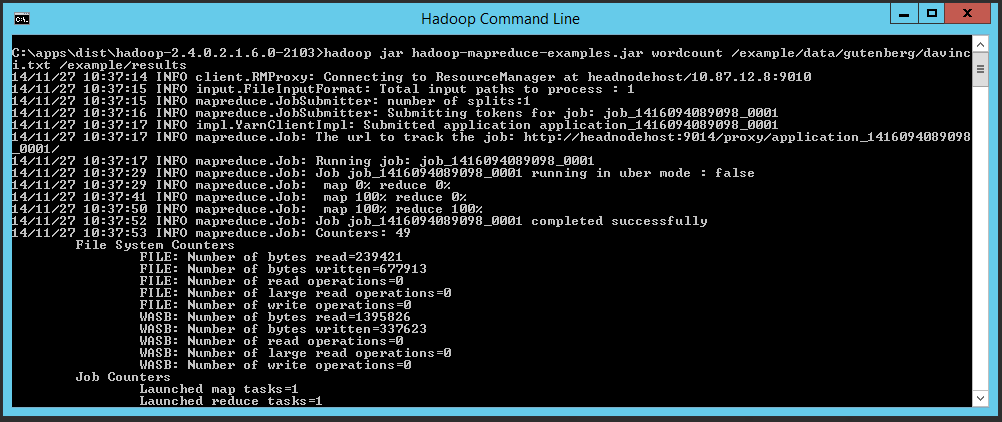
At the end we can see the input and output records, if we receive any error during the process, bytes read and write, etc. etc. Now, we can see the content of the result file.
hadoop fs –ls /example/results
We can see that we have a file in this location named part-r-00000. This is the file created by map/reduce process, and follow this format for the name: part + r + correlative number. We can open it at, for example, at the end of the doc using –tail option:
hadoop fs –tail /example/results/part-r-00000
For example, “youth” appears 9 times, “youth,” appears 3 times…
Some points about HDFS system:
- It is hosted in a blob container in Windows Azure Storage. This means that it is retained even when the HDInsight cluster is deleted.
- The paths to access to the files can be WASB or HDFS:
- wasb://data@myaccount.blob.core.windows.net/logs/file.txt
- /log/files.txt
- We can use the following HDFS sheel commands:
- ls and lsr
- cp, copyToLocal, and copyFromLocal
- mv, moveToLocal, and moveFromLocal
- mkdir
- rm and rmr
- cat
 Angel Perez Palacios