
A good standard security best practice for cloud-connected Linux virtual machines is to create a “password-less” virtual machines. This is very easy to do with Azure but not the default if you are using the “Quick Create” option in the Management Portal. I would like to use “From Gallery” option that enable you to choose between user+pwd and to upload an SSH key for authentication.
I recommend to use OpenSSL to generate the private/public key pair. You can download it from openssl.org, you can find the Windows installer in this link.
The current version of the Azure Management Portal only accepts SSH public keys that are encapsulated in an X509 certificate. Follow the steps below to generate and use SSH keys with Azure.
Use openssl to generate an X509 certificate with a 2048-bit RSA keypair:
openssl req -x509 -nodes -days 365 -newkey rsa:2048 -keyout myPrivateKey.key -out myCert.pem
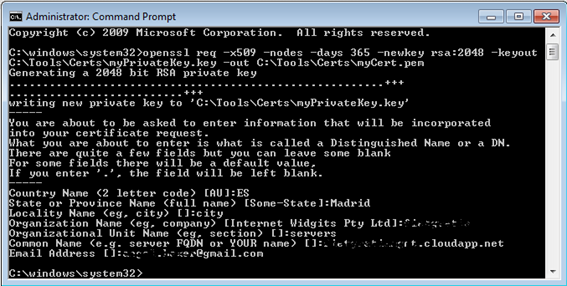
You can answer the few questions that the openssl prompts for (or you may leave them blank). The content in these fields is not used by Azure.
Upload the myCert.pem while creating the Linux virtual machine. The provisioning process will automatically install the public key in this certificate into the authorized_keys file for the specified user in the virtual machine.
 Angel Perez Palacios